By GraphPay Research · Reviewed for accuracy May 2026
Quick Answer
Adding a crypto card to Apple Pay or Google Pay works like adding any card — with a few crypto-specific notes:
The general steps:
- Get a supported crypto card — one that supports mobile pay (often at KYC Level 2 or higher)
- Open your wallet app — Apple Wallet (iPhone) or Google Wallet (Android)
- Add the card — scan or enter your crypto card's details (number, expiry, CVV)
- Verify — complete any verification the card issuer requires
- Tap to pay — use your phone at any contactless terminal, spending crypto behind the scenes
What you need: A crypto card that supports Apple Pay / Google Pay (many require KYC Level 2+ for mobile pay), and a compatible phone.
The bottom line: Adding a crypto card to mobile pay is quick and works like any card. Once added, you tap your phone to spend crypto anywhere contactless is accepted. With a non-custodial card, your crypto stays in your wallet, converting only when you tap to pay.
Get a mobile-pay-ready GraphPay card
Key Takeaways
- Adding a crypto card to Apple Pay / Google Pay works like adding any card — scan or enter details.
- Mobile pay often requires KYC Level 2 or higher on crypto cards.
- Once added, tap your phone to spend crypto anywhere contactless is accepted.
- With a non-custodial card, your crypto stays in your wallet, converting only when you tap to pay.
Why Add a Crypto Card to Mobile Pay?
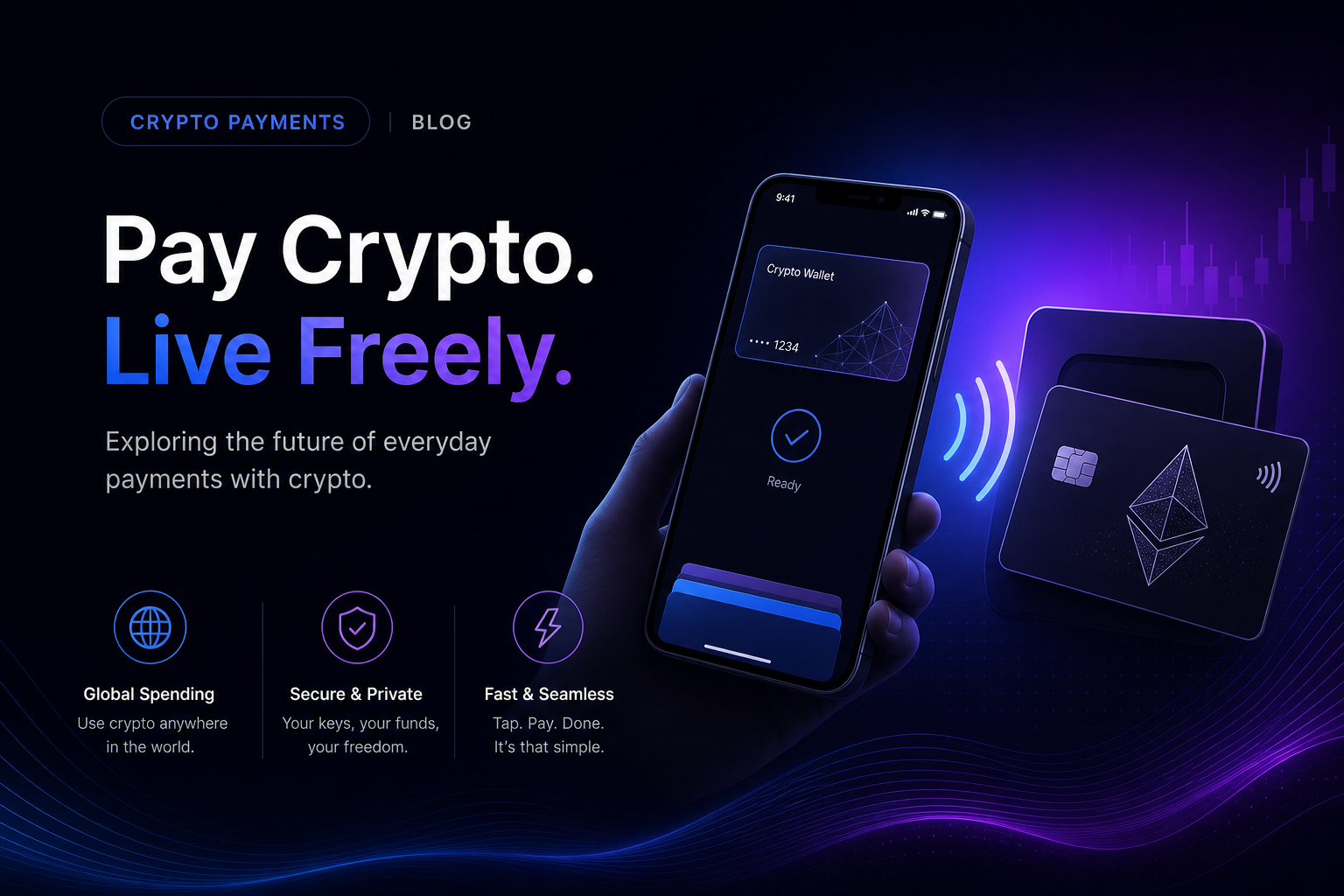
Adding your crypto card to Apple Pay or Google Pay is one of the most convenient ways to spend crypto in daily life.
The benefits:
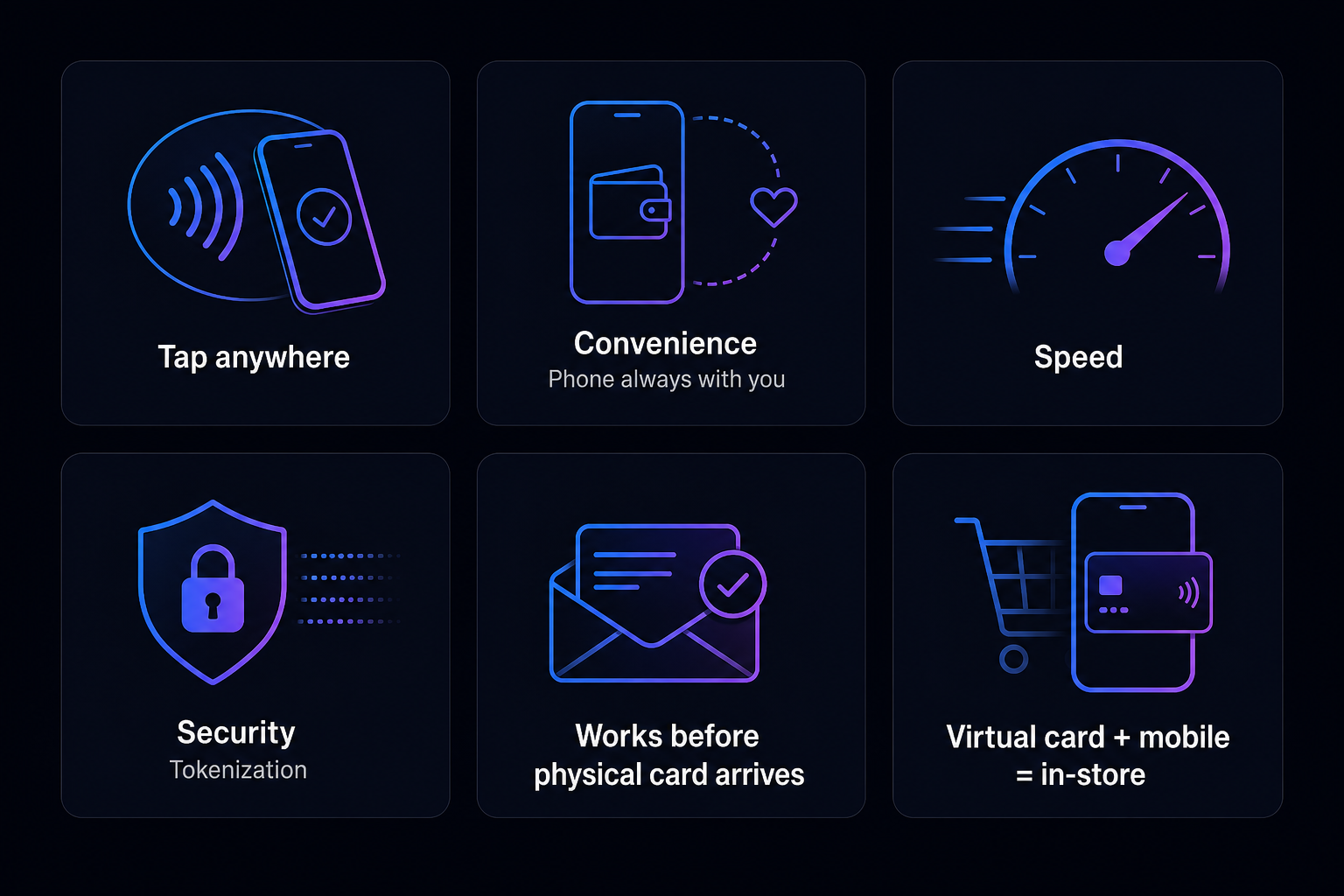
Tap to pay anywhere. Once added, you tap your phone at any contactless terminal — no physical card needed. Contactless is accepted at tens of millions of merchants worldwide.
Convenience. Your phone is always with you. Mobile pay means you can spend crypto without carrying a physical card.
Speed. Tap-to-pay is fast — faster than inserting a card or paying with cash.
Security. Mobile pay uses tokenization (your actual card number isn't shared with the merchant), adding a security layer. And with a non-custodial crypto card, your funds stay in your wallet.
Works before your physical card arrives. If you've ordered a physical card (Level 3) but it hasn't shipped yet, mobile pay lets you tap-to-pay in the meantime (once you're at the required KYC level).
Virtual card + mobile pay = in-store spending. Even with just a virtual card (no plastic), adding it to mobile pay lets you spend in stores via tap-to-pay — bridging the gap between virtual and physical.
The bottom line: Mobile pay turns your phone into a crypto spending device — convenient, fast, secure, and widely accepted. It's one of the best ways to use crypto for everyday purchases.
What You Need Before Adding
A few prerequisites for adding a crypto card to mobile pay.
A supported crypto card. Not all crypto cards support mobile pay, and those that do often require a certain KYC level (commonly Level 2 or higher). Check that your card supports Apple Pay / Google Pay and that you're at the required verification level.
The right KYC level. Mobile pay frequently requires KYC Level 2 or higher. If you're at Level 1, you may need to upgrade to Level 2 to enable mobile pay. Check your card's requirements.
A compatible device. An iPhone (for Apple Pay) or Android phone (for Google Pay) with the wallet app. Most modern smartphones support mobile pay.
Your card details. The card number, expiry date, and CVV — available in your crypto card app.
The card app (helpful). Some crypto card apps let you add the card to mobile pay directly from the app, streamlining the process.
Once you have these, adding the card takes just a minute or two, as covered next.
How to Add a Crypto Card to Apple Pay (iPhone)
The steps for adding to Apple Pay on an iPhone.
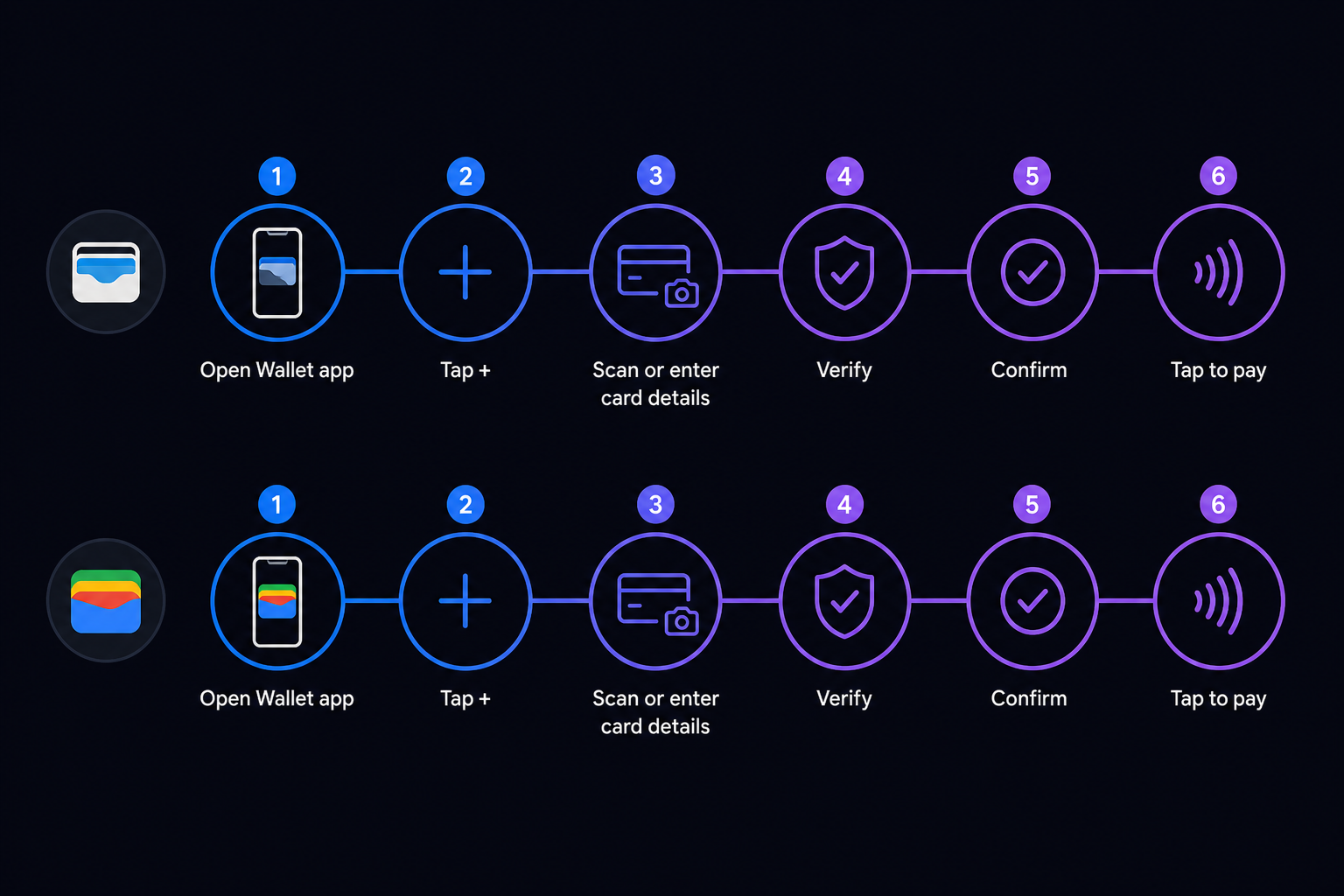
Step 1: Open the Wallet app. Find the Apple Wallet app on your iPhone.
Step 2: Tap the "+" to add a card. Look for the plus button (usually top-right) to add a new card.
Step 3: Add your crypto card. You can either:
- Scan your card (if physical) using the camera, or
- Enter the card details manually (number, expiry, CVV) — useful for virtual cards
Step 4: Complete verification. Apple and the card issuer may require verification (a code sent to your app or email) to confirm you own the card.
Step 5: Confirm. Once verified, the card is added to Apple Pay.
Step 6: Tap to pay. Hold your iPhone near any contactless terminal and authenticate (Face ID / Touch ID) to pay — spending crypto behind the scenes.
Tip: Some crypto card apps let you add the card to Apple Pay directly from within the app — look for an "Add to Apple Pay" button, which streamlines the process.
How to Add a Crypto Card to Google Pay (Android)
The steps for adding to Google Pay on an Android phone.
Step 1: Open the Google Wallet app. Find Google Wallet on your Android phone.
Step 2: Tap "Add to Wallet" / the "+" button. Look for the option to add a new payment card.
Step 3: Add your crypto card. You can either:
- Scan your card (if physical) using the camera, or
- Enter the card details manually (number, expiry, CVV) — for virtual cards
Step 4: Complete verification. Google and the card issuer may require verification to confirm you own the card.
Step 5: Confirm. Once verified, the card is added to Google Pay.
Step 6: Tap to pay. Unlock your phone and hold it near any contactless terminal to pay — spending crypto behind the scenes.
Tip: As with Apple Pay, some crypto card apps let you add the card to Google Pay directly from the app, streamlining the process.
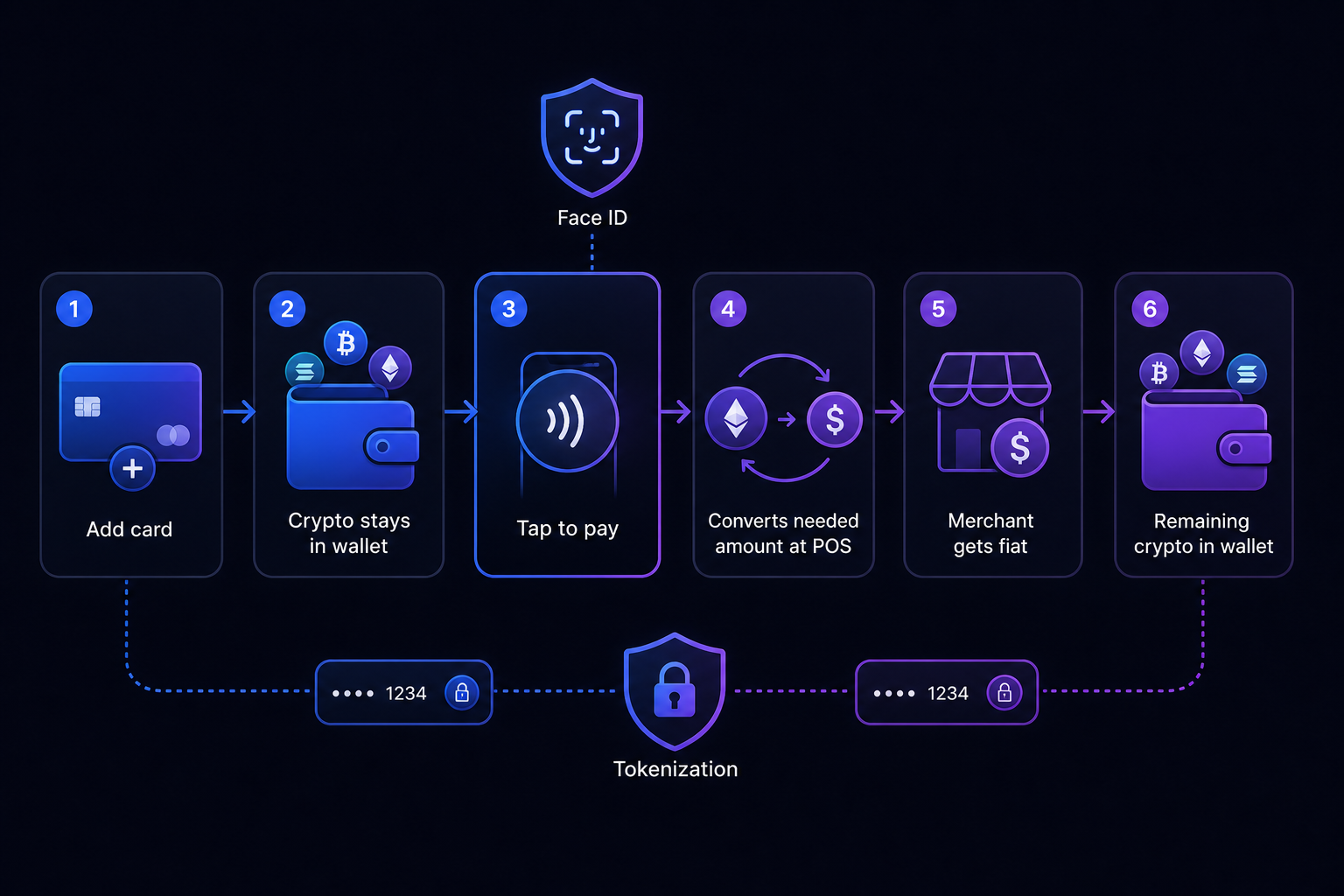
How Mobile Pay Works With Non-Custodial Crypto Cards
An important point: mobile pay works seamlessly with non-custodial crypto cards, keeping your funds in your control.
The flow with a non-custodial card:
- You add your non-custodial crypto card to Apple Pay / Google Pay
- Your crypto stays in your own wallet (not moved anywhere by adding to mobile pay)
- When you tap to pay, the card converts the needed crypto to fiat at the point of sale
- The merchant receives a normal contactless payment
- Your remaining crypto stays in your wallet
What this means:
- Adding to mobile pay doesn't change your custody — your crypto stays in your wallet
- Mobile pay is just a convenient way to trigger the card's spending (which converts crypto to fiat at purchase)
- You get the convenience of tap-to-pay with the security of non-custodial funds
The security layers:
- Non-custodial: Your crypto stays in your wallet until you spend
- Tokenization: Mobile pay doesn't share your actual card number with merchants
- Device authentication: Face ID / Touch ID / PIN required to pay
The combined benefit: With a non-custodial crypto card in mobile pay, you get maximum convenience (tap your phone anywhere) with maximum control (funds stay in your wallet) and added security (tokenization, device authentication). It's the best of convenience and self-custody.
Add a non-custodial GraphPay card to mobile pay
How GraphPay Works With Apple Pay & Google Pay
GraphPay's non-custodial card works with mobile pay, letting you tap to spend crypto while keeping funds in your wallet.
The GraphPay mobile pay experience:
- Add to Apple Pay / Google Pay — at the required KYC level (commonly Level 2+)
- Non-custodial — your crypto stays in your own wallet; tap-to-pay converts only what you spend
- Virtual card + mobile pay — even before a physical card, add your virtual card to mobile pay for in-store tap-to-pay
- Global acceptance — spend anywhere contactless (Visa/Mastercard) is accepted
The tiered path:
- Level 1: Virtual card for online spending
- Level 2: Unlock mobile pay — add to Apple Pay / Google Pay for in-store tap-to-pay
- Level 3: Physical card plus mobile pay, highest limits
The value: GraphPay lets you spend crypto by tapping your phone — convenient and widely accepted — while your funds stay in your own wallet (non-custodial). Add your card to Apple Pay or Google Pay at Level 2+, and tap to spend crypto anywhere contactless is accepted, with your crypto converting only at the moment you pay.
Getting started: Once you're at the required KYC level, add your GraphPay card to Apple Pay or Google Pay (via your wallet app or the GraphPay app), and start tapping to pay with crypto — funds staying in your control throughout.
Get a GraphPay card for mobile pay
Frequently Asked Questions
Can I add a crypto card to Apple Pay? Yes, if your crypto card supports Apple Pay (many do, often requiring KYC Level 2 or higher). Open the Apple Wallet app, tap "+" to add a card, scan or enter your crypto card details, complete verification, and confirm. Once added, tap your iPhone at contactless terminals to spend crypto behind the scenes. Some crypto card apps let you add to Apple Pay directly from the app.
Can I add a crypto card to Google Pay? Yes, if your crypto card supports Google Pay (many do, often requiring KYC Level 2+). Open Google Wallet, tap to add a card, scan or enter your crypto card details, complete verification, and confirm. Once added, hold your Android phone near contactless terminals to pay with crypto behind the scenes. Some crypto card apps streamline this with an in-app "Add to Google Pay" option.
Do I need a physical card to use mobile pay? No — you can often add a virtual crypto card to Apple Pay / Google Pay, enabling in-store tap-to-pay without a physical card. This is one of mobile pay's advantages: even with just a virtual card (at the required KYC level, often Level 2+), you can spend in stores via your phone. Mobile pay bridges the gap between virtual-only and physical cards.
What KYC level do I need for mobile pay? Mobile pay (Apple Pay / Google Pay) commonly requires KYC Level 2 or higher on crypto cards, though requirements vary by provider. If you're at Level 1, you may need to upgrade to Level 2 to enable mobile pay. Check your specific card's requirements — some enable mobile pay at Level 2, giving you in-store tap-to-pay without needing a physical card (Level 3).
Is my crypto safe when I use mobile pay? With a non-custodial crypto card, yes — adding to mobile pay doesn't change your custody. Your crypto stays in your own wallet, and tapping to pay converts only what you spend, at the point of sale. Plus, mobile pay adds security through tokenization (your actual card number isn't shared with merchants) and device authentication (Face ID / Touch ID / PIN). You get convenience with self-custody and added security.
How does spending crypto via Apple Pay work? When you tap your phone to pay with a crypto card in Apple Pay, the card converts the needed crypto to fiat at the point of sale — the merchant receives a normal contactless payment, and (with a non-custodial card) your remaining crypto stays in your wallet. Mobile pay is just a convenient way to trigger the card's spending; the crypto-to-fiat conversion happens behind the scenes.
Why won't my crypto card add to Apple Pay or Google Pay? Common reasons: your card doesn't support mobile pay, you're not at the required KYC level (mobile pay often needs Level 2+), the card details were entered incorrectly, or verification wasn't completed. Check that your card supports Apple Pay / Google Pay, that you've reached the required verification level, and that you've completed any issuer verification. Contact your card provider if issues persist.
About This Guide
This guide is published by the GraphPay Research team — building non-custodial crypto payment infrastructure. Our content is based on current card industry practices, mobile payment integration, and 2026 market data.
Sources & data: Mobile pay processes and requirements reflect publicly available information as of 2026 and may change. Specific requirements (including KYC levels for mobile pay) vary by provider and device. This guide is educational and not financial advice — always verify current requirements with your provider.
GraphPay is non-custodial crypto payment infrastructure — your crypto, your pay. Learn more at graphpay.io.
Last reviewed: May 2026 · GraphPay Research